
Get Claude at FPD
Two quick parts: create your account (two minutes, works from any device), then install the app on your FPD computer — it comes from the school's Company Portal, not from Claude's website.
Part 1 · Create your account
FPD provides Claude to faculty and staff — no credit card, nothing to pay.
Sign up with your school email
Use your @fpdmacon.org address — that's what gets you in.
That's it — Claude works in your browser right away
Go to claude.ai on any device and sign in. Part 2 just adds the app to your school computer.
Part 2 · Install the app on your FPD computer
Skip the download button on Claude's website — it won't work on school machines. The app installs from the FPD Company Portal instead:
Save your work
The install finishes with a reboot, so close out anything important first.
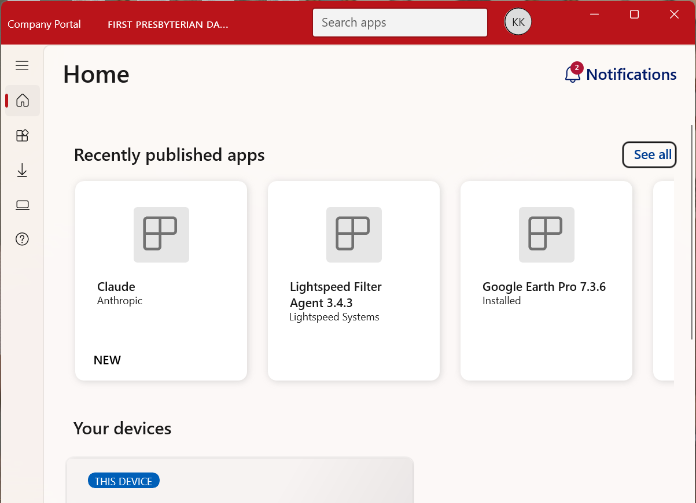
Open the FPD Company Portal
Press the ⊞ Windows key (or click it on screen) and just type COMPANY — the FPD Company Portal pops right up.
Click the Claude tile
You'll see Claude (Anthropic) under "Recently published apps."
Click Install, then reboot when prompted
Let the install run, restart your computer, and Claude is ready to go.
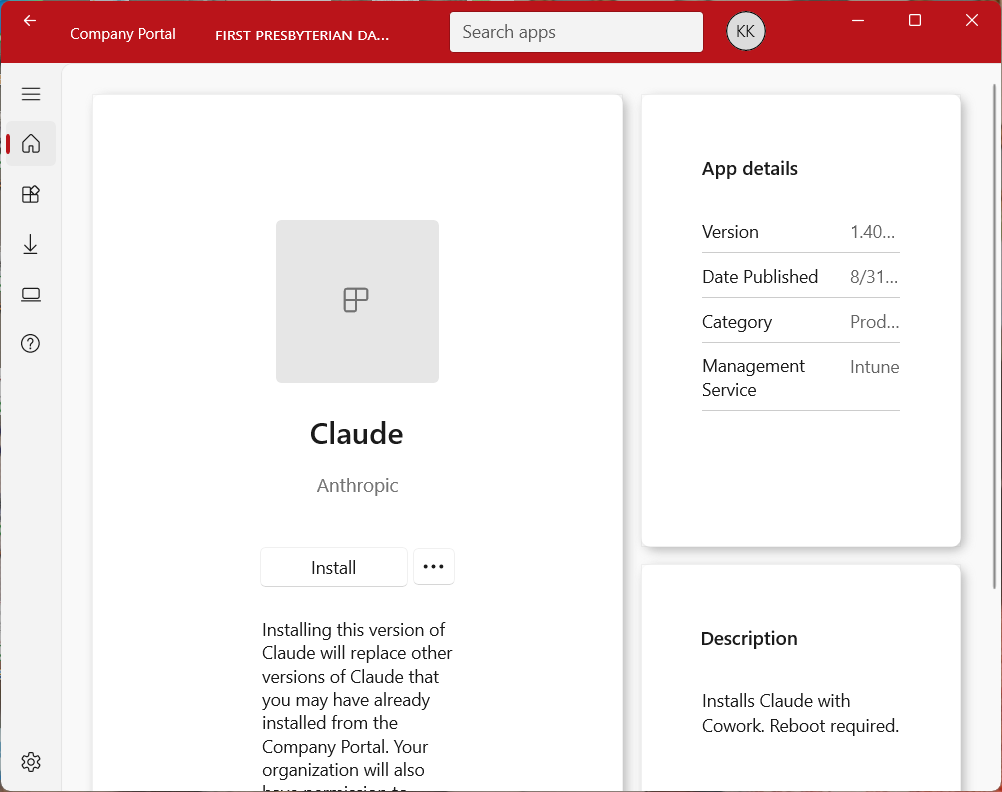
The portal install is managed by FPD IT and will replace any copy of Claude you installed yourself.
On your phone
The Claude mobile app is in your phone's app store — search for "Claude by Anthropic" and sign in with the account from Part 1.
Stuck on something?
Install or computer trouble → the FPD IT Help Desk is happy to help. Questions about actually using Claude → come see David Bearchell or check the AI hub.
Install instructions courtesy of the FPD IT Department.